See It In Action
Watch how easy it is to create cards for your business.
Everything you need to know about creating secure, scannable codes for your business.
Is this really free?
Yes. Unlike other generators that trap you with trial periods, our Universal QR Generator creates 100% static codes. They have no scanning limits, no hidden costs, and they never expire.
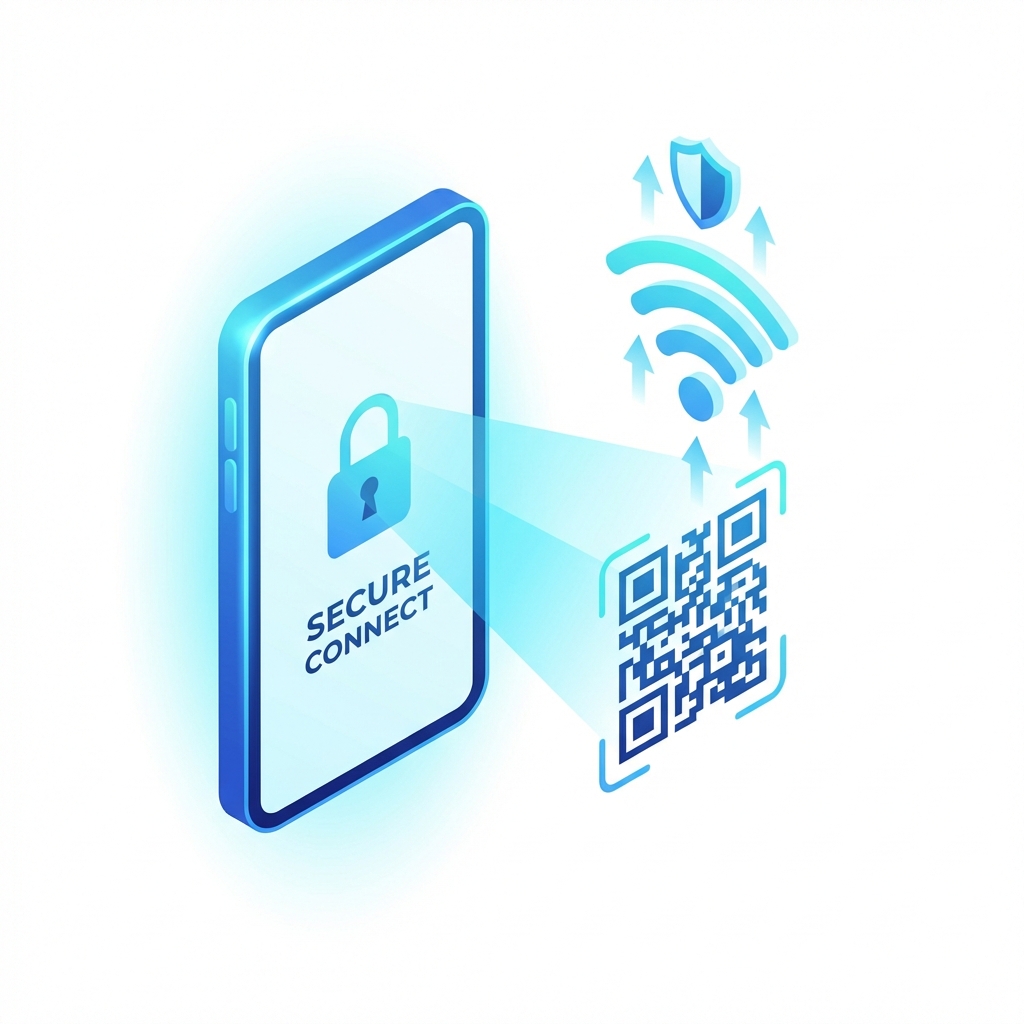
Secure Wi-Fi Sharing
Stop shouting passwords across the room. Generate a secure Wi-Fi QR code that guests can scan to join instantly.
- Privacy First: Password encoded locally, never sent to servers.
- Secure: Prevents "shoulder surfing" of typed passwords.
Next-Gen Networking
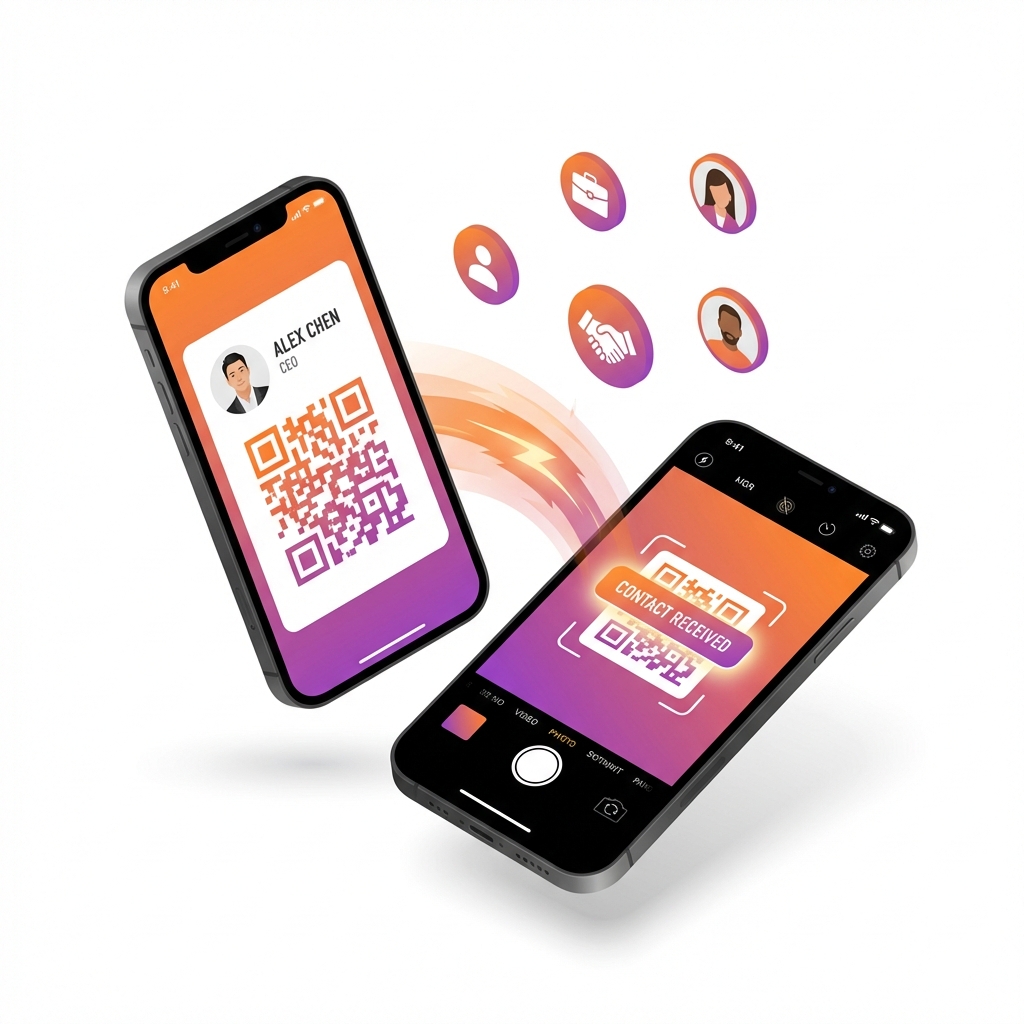
A Digital Business Card is the digital equivalent of a handshake. One scan instantly saves your Name, Number, Email, and Title directly to their contacts.
- Zero Errors: No more typos in phone numbers.
- Professional: Stand out at conferences and meetings.
Boost Digital Engagement
Drive traffic where it matters. Perfect for Instagram followers, Google Reviews, or launching a new website from offline print media.
Contactless Digital Menus
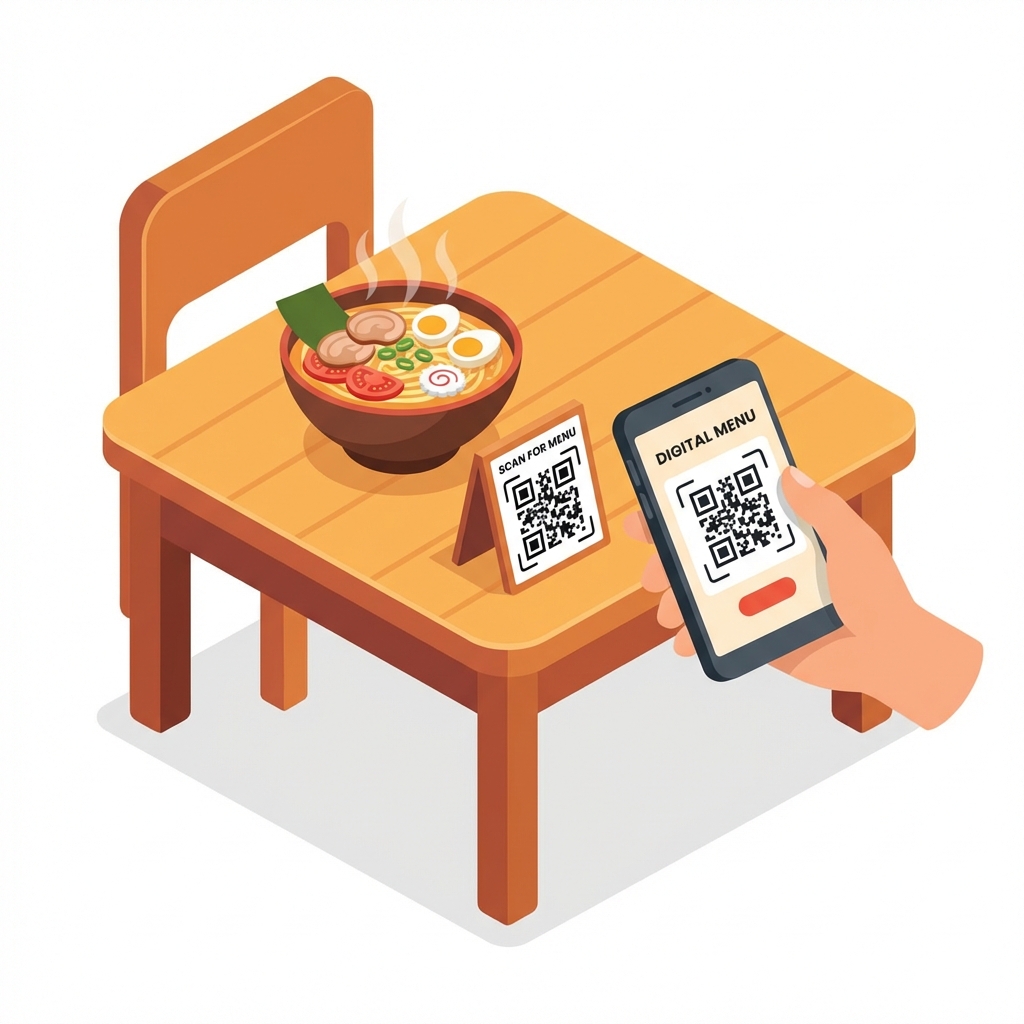
Hygienic, instant, and editable. Link your QR code to a PDF or Drive file once, and update the file anytime without re-printing the code.
- Cost Saving: Eliminate printing costs for menu updates.
- Dynamic: Change prices or items instantly in the cloud.
Pro Printing Tips
Frequently Asked Questions
How to install on iOS?
- Open this page in Safari on your iPhone.
- Tap the Share button (box with an arrow up).
- Scroll down and tap Add to Home Screen.
- Tap Add in the top right corner.
How to install on Android?
- Open this page in Chrome.
- Tap the Menu icon (three dots in top right).
- Tap Install App or Add to Home screen.
- Follow the on-screen prompts.
Why does it take time to load or download?
To guarantee 100% privacy, we do not send your data to any server. All PDF and Image generation happens locally on your device using your browser's processing power.
This means:
- Your personal data never leaves your phone/computer.
- The speed depends on your device's processor (it may be slower on older mobiles).
- The initial load might be slightly heavier to ensure completely offline capability.
Which browser works best?
Omni QR Hub is optimized for modern browsers that support high-performance local processing.
- Recommended: Google Chrome, Safari, Microsoft Edge, or Firefox.
- Note: Very old browsers (like Internet Explorer) may not support the privacy-first local generation features.