Canva makes flyers easy, and a QR code turns a printed flyer into a link people can actually open. Canva has its own basic QR code app, but it only makes plain link codes. Here's how to add a branded code, or a Wi-Fi, menu or contact code, and make sure it scans once it's printed.
Step 1: Make the QR Code
- Open the generator for what the code should do: a link, Wi-Fi, a menu PDF or a business card.
- Fill it in, then match your flyer: pick your brand colour, add your logo and, if you like, a "Scan Me" frame.
- Choose QR Only and download SVG. SVG stays sharp at any size. PNG works too, and the QR-only PNG is about 1200 px with the white border included.
Step 2: Upload It to Canva
- In your Canva design, open Uploads and choose Upload files.
- Pick the SVG (or PNG) you downloaded and click it to add it to the page.
- Drag it into place. Keep the white border around the code, and don’t crop it or put it on a busy photo.
Step 3: Size It for Print
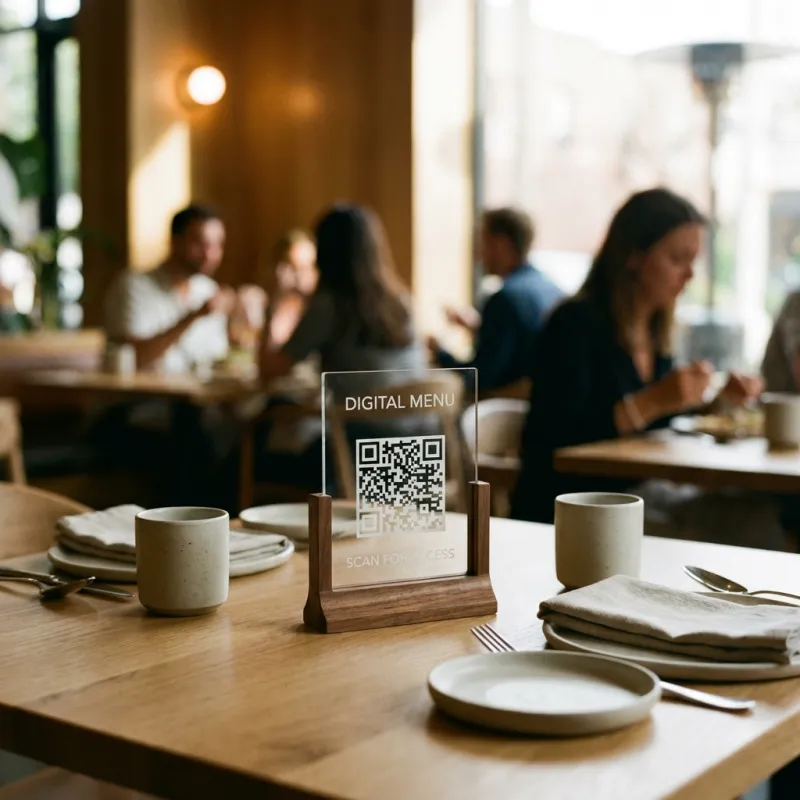
- At least 2 cm (0.8 in) wide for flyers held in the hand; 3 cm or more for table tents.
- Bigger for distance: roughly 1 cm of code per 10 cm of scanning distance, so a poster read from 2 m needs a code about 20 cm wide.
- Dark code on a light background. Light-on-dark and low-contrast colours scan badly; the generator warns you about low contrast.
- Say what it does: “Scan for the menu” or “Scan to join our Wi-Fi” next to the code gets more scans than a bare square.
Step 4: Test Before You Print
Download the design from Canva as PDF Print, print one copy at actual size, and scan it with two different phones in normal light. If it scans from the printout, it will scan from the batch.
Canva’s Built-In QR App vs. Uploading a Code
Canva’s QR code app is quick for a plain link. Uploading a code from OmniQR Hub gives you your own colours and logo, other code types (Wi-Fi, vCard, UPI, Google review), and a static code that never expires and doesn’t depend on any account. Both are free.
Common Questions
Can I put a QR code on a Canva design for free?
Yes. Make the code for free at OmniQR Hub, download it as SVG or PNG, and upload it to Canva under Uploads. It works on Canva’s free plan.
Should I use SVG or PNG in Canva?
SVG, if you can. It stays sharp at any size, which is ideal for print. A 1200 px PNG is also fine for flyers and posters.
How big should a QR code be on a flyer?
At least 2 cm (0.8 in) wide for something held in the hand, and larger for posters read from a distance: about 1 cm of code per 10 cm of distance.
Try it now
Free, no signup, and what you type stays on your device.
Create a QR code for your flyer